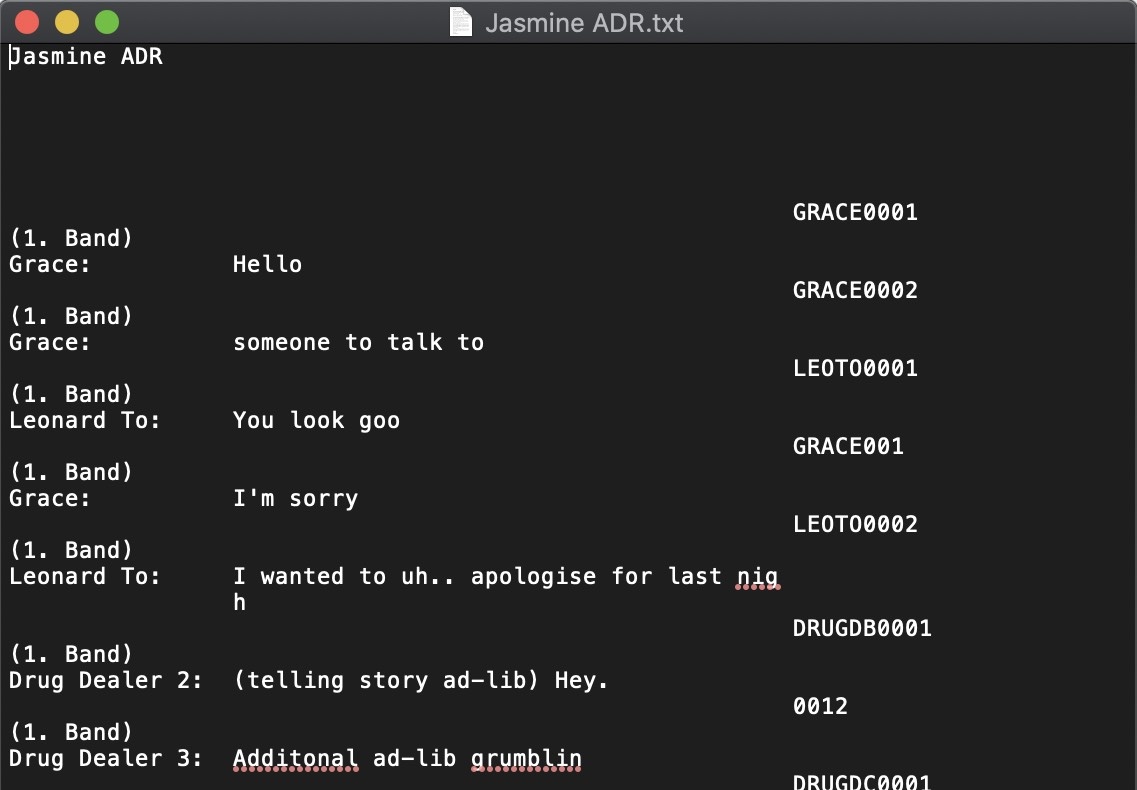
Exporting ADR Cue Sheets and Files
The cue sheet and file export options are found in the File → Export ... submenu. There are three export commands: Batch Export Events, Export ADR Overview Sheet and Export Scheduling File.
Batch Export Events
The Batch Export is the main export tool for ADR cue sheets and data files. It supports Microsoft Word (.docx), PDF (.pdf), Netflix TTAL (.ttal), Microsoft Excel (.xlsx) and Comma-Separated Values (.csv) formats. These can all be exported in one go, or selected one at a time.
To open the Batch Event Export window, press Command & Shift & E, or select File → Export ... → Batch Export Events.
Preparing Events for Export
Before exporting, set up the Event List to control which events are included and in what order.
To export only the ADR cues of a selected character, set the filter to that character in either the Timeline or Event List.
To export all characters, clear any filter in the Visual Event track - so that all the ADR Cues are showing.
If required, make a selection to export only selected events or a specific reel for example.
Page 1 - General, Timelines and Formats
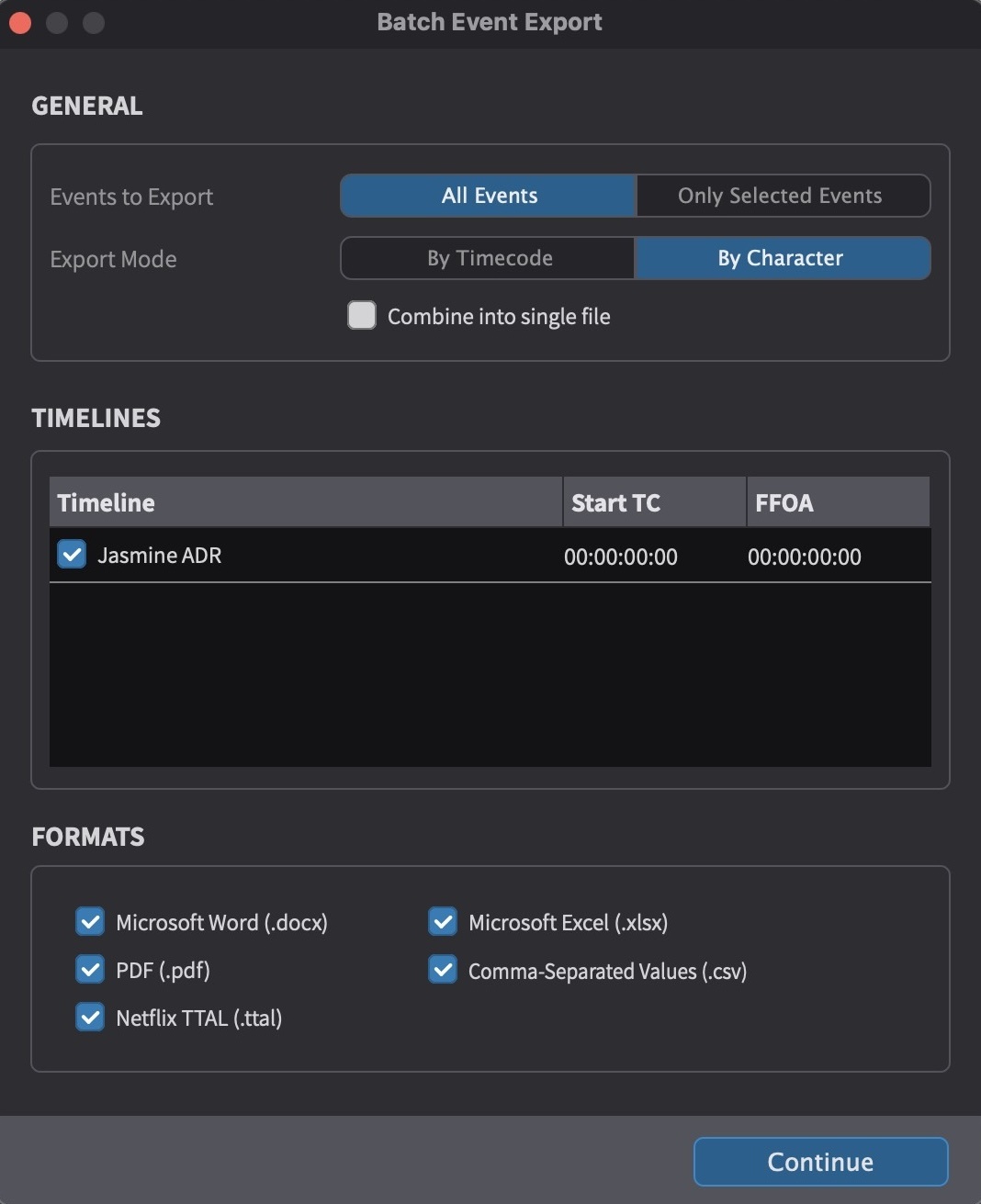
In the GENERAL section, choose whether to export All Events or Only Selected Events. Set the Export Mode to By Timecode to inter-mingle all characters in timeline order, or By Character to group each character's cues together. Enable Combine into single file to join all characters into one file - useful when printing a single PDF for all characters.
In the TIMELINES section, enable the check-boxes next to the Timelines that should be included in the export.
In the FORMATS section, enable the check-boxes next to the required file formats:
Microsoft Word (.docx) - ADR Cue Sheet style layout for easy editing during translation and adaptation, with one-click transparent bulk re-import into the Event List. For more information on the Word round-trip workflow, see the Importing Events chapter.
PDF (.pdf) - ADR Cue Sheets for use during ADR Recording Sessions.
Netflix TTAL (.ttal) - for use with Netflix's TTAL system for foreign versioning. FFOA and Language settings are derived from the Timeline settings. To create a new language version, duplicate the Timeline and set a different language - this will be exported into the TTAL file tag. For more information, see the How to Use TTAL with Cue Pro chapter.
Microsoft Excel (.xlsx) - all cues listed in a table format, including text formatting from the event's text and notes (bold, italic, underlined, strikethrough, text colour) and Reason code fields.
Comma Separated Values (.csv) - all cues listed in a basic table format. A good choice for export to other database programs like EdiCue.
Once complete, click Continue.
Page 2 - Settings and Formats
The second page adapts its content based on the formats selected on page 1.
If only Microsoft Excel or Netflix TTAL were selected, there is no second page - clicking Continue goes straight to the file save dialog.
If Microsoft Word, PDF, or CSV were selected (in any combination), the second page appears with the PROJECT SETTINGS and FORMAT SETTINGS sections.
Project Settings
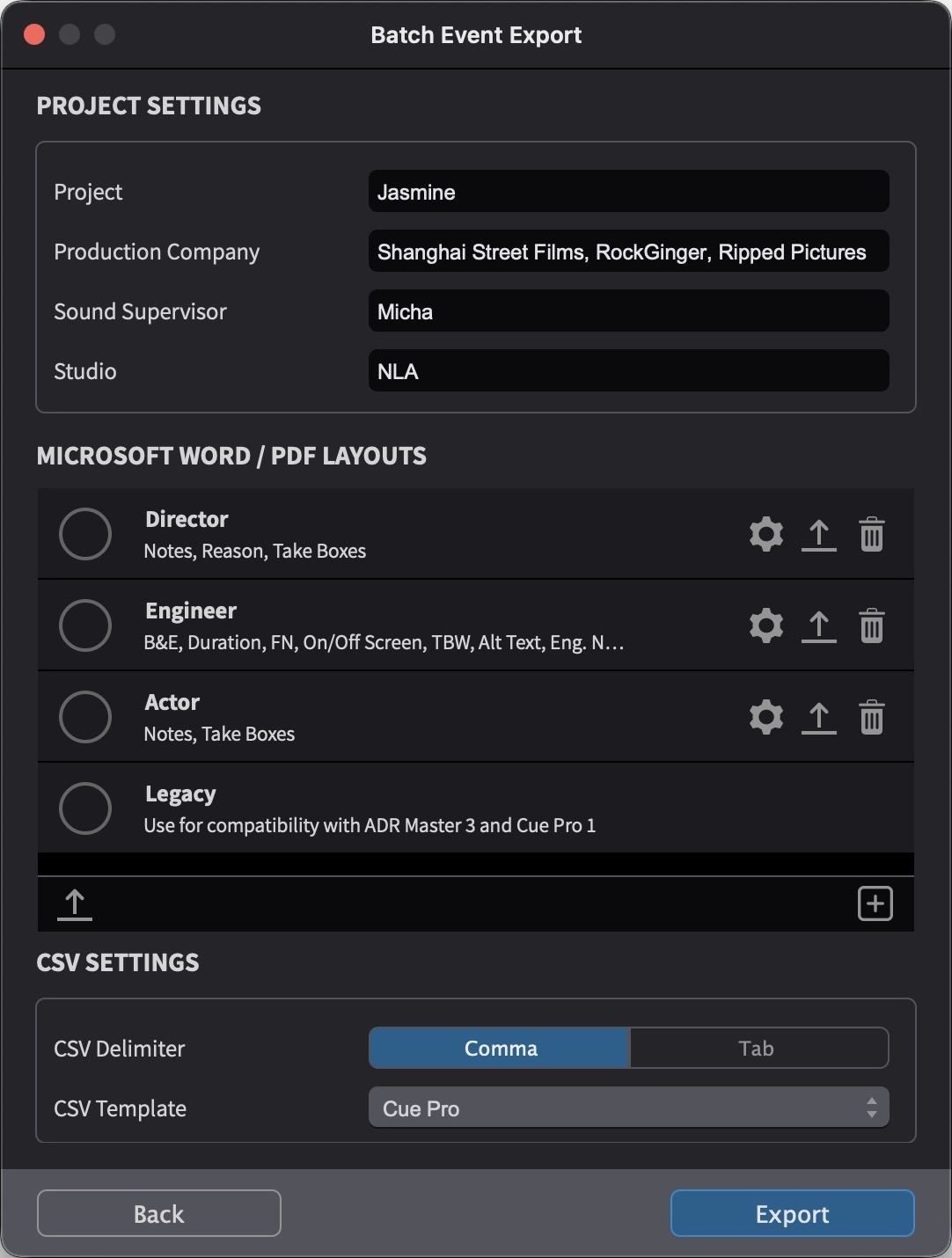
The PROJECT SETTINGS section allows production information to be entered - Project, Production Company, Sound Supervisor, Post Production Supervisor, Director and Studio. These details appear in the header area of each exported Word and PDF cue sheet.
Format Settings
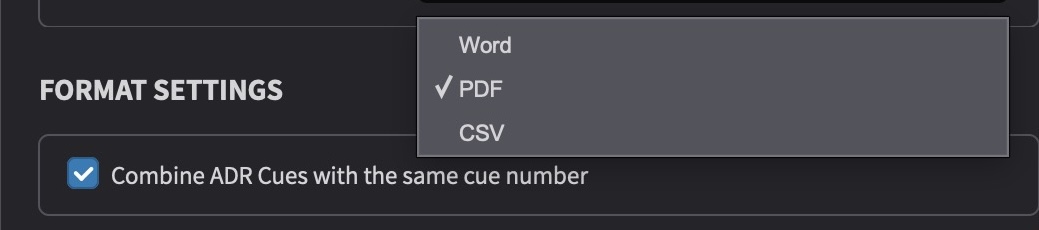
The FORMAT SETTINGS dropdown selects which format's settings are displayed below. When only one of Word, PDF, or CSV was selected on page 1, the dropdown defaults to that format. When multiple formats were selected, the dropdown allows switching between them to configure each format's settings independently.
Microsoft Word Layouts
When Word is selected from the FORMAT SETTINGS dropdown, the Word layout table is displayed. Word layouts use a field-based settings approach - each layout defines which fields appear on the exported cue sheets through a settings popover.
Cue Pro ships with four default Word layouts - Director, Engineer, Actor and Legacy - each with different field selections suited to different roles. These are fully configurable. The fields shown on each layout's cue sheets can be customised to suit any workflow.
Each layout in the list shows its name and a summary of the fields currently enabled for it. To rename a layout, single-click its name and type a new one.
The circle to the left of each layout name controls whether that layout is included in the current export - a tick appears inside the circle when the layout is enabled. At least one layout must be enabled.
To the right of each layout are three icons:
The Settings icon (gear) opens a popover where the fields for that layout are configured.
The Export Template icon (arrow) exports the layout as a template file.
The Delete icon (bin) removes the layout.
At the bottom of the list, the Import Templates button (arrow) imports layout template files, and the + button creates a new layout with default settings.
Word Layout Settings
Click the Settings icon on any Word layout to open its settings popover. This is divided into three sections.
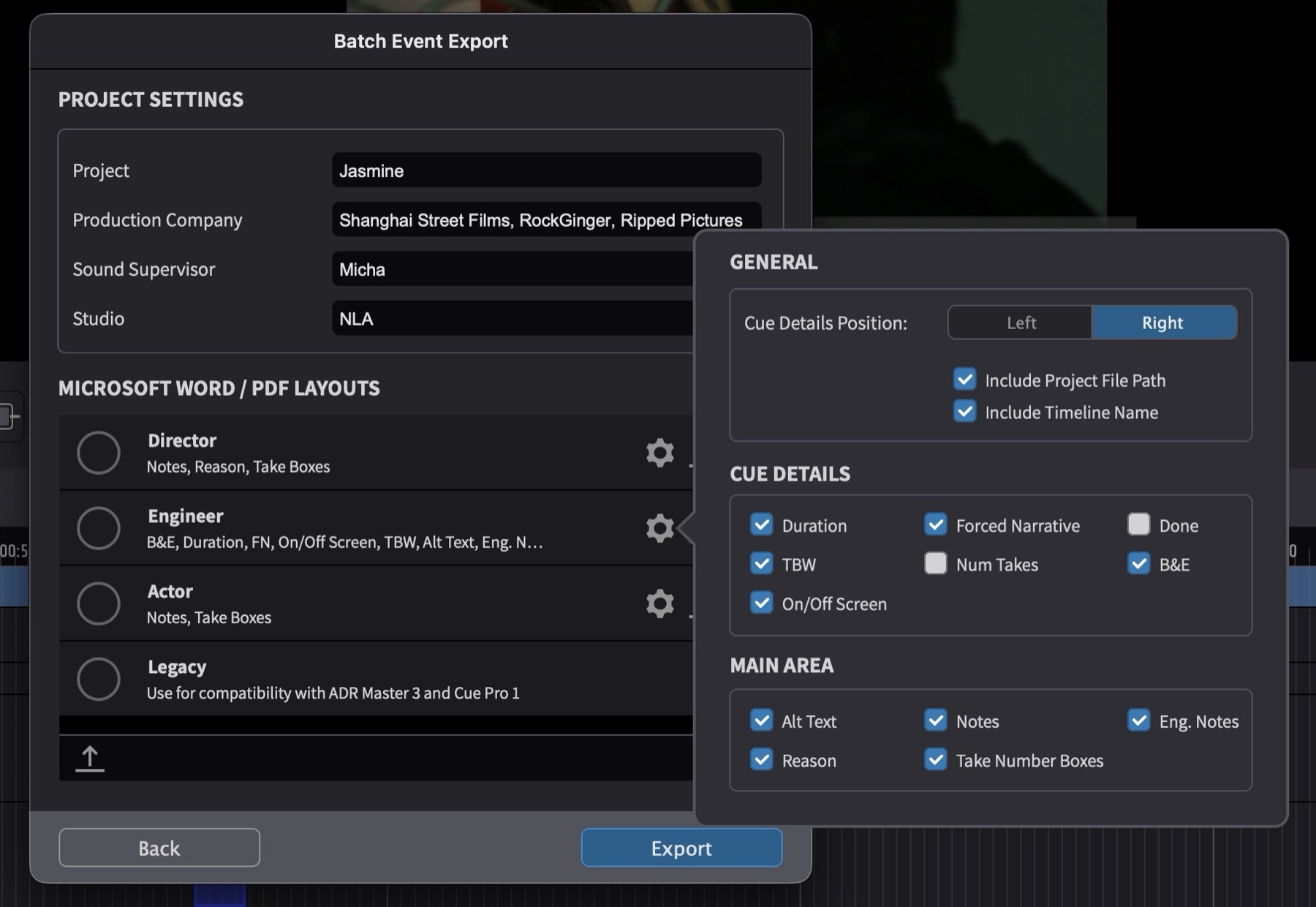
The GENERAL section contains:
Cue Details Position (Left / Right) - sets whether the cue identification details (cue number, character, timecodes, duration, and status fields) appear on the left or right side of each cue on the sheet.
Include Project File Path - adds the project file path to the sheet header.
Include Timeline Name - adds the timeline name to the sheet header.
The CUE DETAILS section controls which status and metadata fields appear in the cue details area of each cue. The available fields are Duration, Forced Narrative, Done, TBW, Num Takes, B&E, and On/Off Screen.
The MAIN AREA section controls which content fields appear in the main body area of each cue. The available fields are Alt Text, Notes, Eng. Notes, Reason, and Take Number Boxes.
Note: Only enable Take Number Boxes where necessary, as this increases the amount of space required for each ADR Cue and therefore increases the number of total pages required for print. In most cases, unless the director would also like to circle takes, this is usually only needed for the attending Dialogue Editor / Supervisor.
PDF Layouts
When PDF is selected from the FORMAT SETTINGS dropdown, the PDF layout table is displayed.
Above the table sits the Combine ADR Cues with the same cue number option. When enabled, consecutive cues sharing a cue number are drawn together inside one box on the sheet - useful when one cue number spans several lines. When cue numbers are not meaningful in the project - for example in Rhythmo Bande workflows - disable this option so that every ADR Cue gets its own box.
The layout table lists all available PDF Layouts. On first launch, Cue Pro creates PDF Layouts from the existing layouts - including the four defaults Director, Engineer, Actor and Legacy - so familiar sheets are available immediately and can be customised from there. The circle to the left of each layout name controls whether that layout is included in the current export - at least one layout must be enabled. To rename a layout, single-click its name and type a new one.
To the right of each layout are icons to open the layout in the PDF Layout Editor, to export the layout as a file, and to delete it. Exported layout files can be imported on another system using the import button at the bottom left of the table - this makes it easy to share a custom layout between rooms or with colleagues. The + button at the bottom right creates a new layout.
The PDF Layout Editor
The PDF Layout Editor is a visual, what-you-see-is-what-you-get editor for PDF cue sheet layouts. Fields can be dragged onto the page, arranged in rows and columns, and styled individually, with the on-screen preview matching the exported PDF exactly.
Clicking a layout's edit icon opens the Edit PDF Template window. The centre of the window shows the page canvas - a live preview of the sheet, filled with sample content, that always reflects exactly what the exported PDF will look like. Around the canvas sit the toolbar at the top, the Available Fields palette, and the Field Properties inspector.
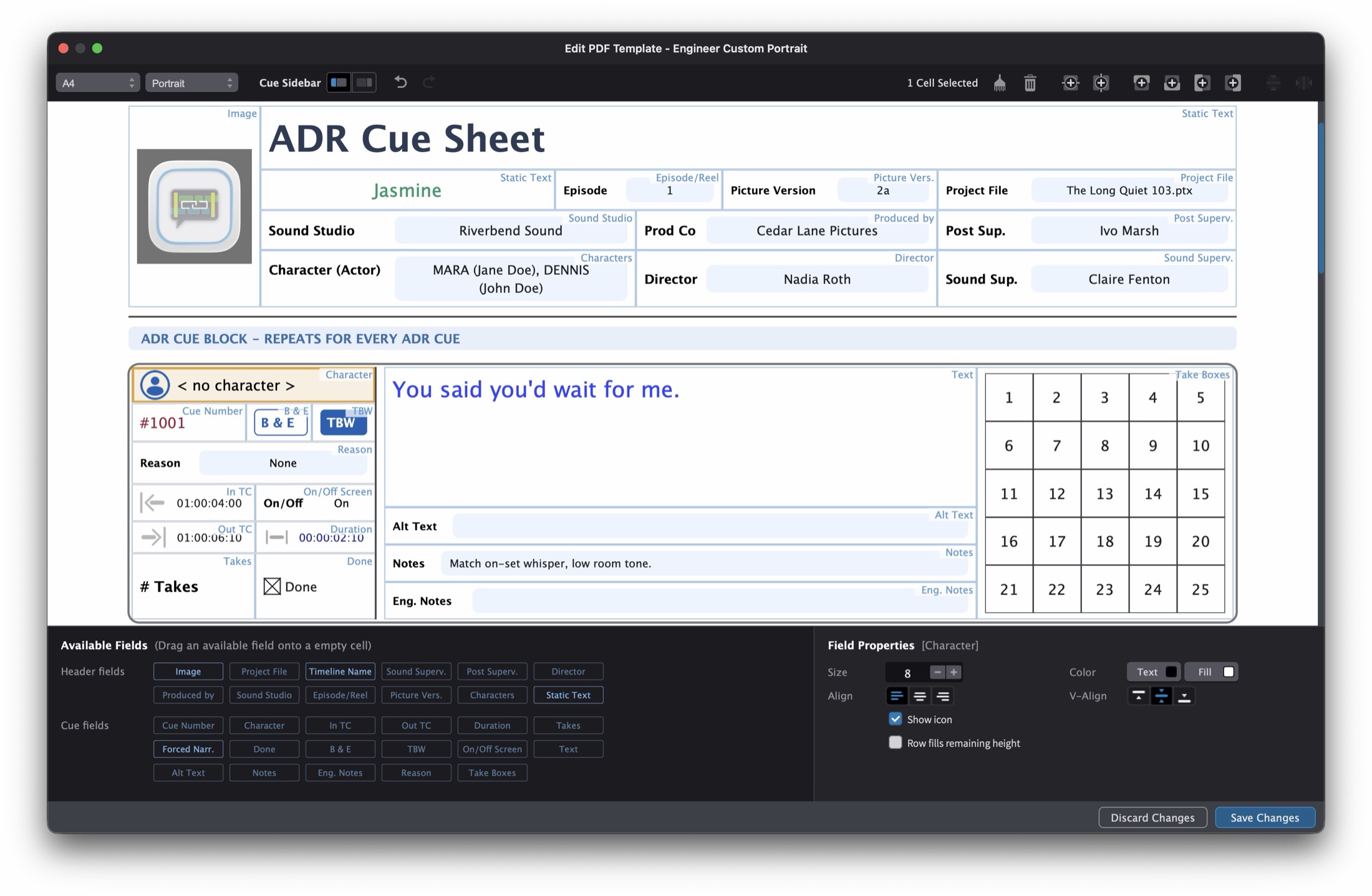
Page Setup: The toolbar sets the overall page - A4 or US Letter page size, Portrait or Landscape orientation, and whether the Cue Sidebar sits on the left or right side of each cue.
Page Structure: A sheet consists of two areas. The header at the top of the page carries the production information - fields such as Project File, Produced by, Sound Superv., Post Prod. Superv., Director, Sound Studio, Timeline Name, Episode/Reel, Picture Vers. and Characters, plus free Static Text and Image fields for custom titles or a company logo. Below the header, one cue block is drawn per exported ADR Cue. Each cue block is split into the Cue Sidebar - typically holding the identification fields such as Cue Number, Character, In TC, Out TC, Duration and status fields like Done, TBW and B & E - and the main content area, typically holding Text, Alt Text, Notes, Eng. Notes, Reason and Take Boxes. Both areas are grids of cells, and every cell can hold one field.
Adding and Arranging Fields: To place a field, drag it from the Available Fields palette onto an empty cell. Header fields can be placed in the header, cue fields in the cue block. To restructure the grid, use the toolbar commands Add Row Above / Add Row Below, Add Column Left / Add Column Right, Split Cell Horizontally / Split Cell Vertically and Merge Cells Horizontally / Merge Cells Vertically. Clear Cell empties a cell while keeping it in the grid, Delete Cell removes it. Every step can be reverted with Undo and Redo.
Field Properties: Selecting a cell shows its settings in the Field Properties inspector. Font Size, bold, text Color and cell Fill colour control the styling, Align and V-Align the placement of the content within its cell, and Width the cell's share of the row. Some fields offer additional settings. A Prefix adds a bold label in front of the value - like the labelled entries on the classic sheets. Show icon displays the familiar sidebar icons for the character and timecode fields. Take Boxes can be configured with the number of Rows and boxes Per Row. Static Text fields hold free text entered directly in the inspector. Image fields load a picture file and either Embed in template - so the layout file stays self-contained when shared - or reference the file path on disk.
Note: Empty fields are omitted on the exported sheet in the main content area, so a cue without notes does not waste space on an empty Notes row. The sidebar always keeps its row structure so all cues line up consistently.
Saving and Closing: Save Changes stores the layout and closes the editor; Discard Changes leaves the layout untouched. Closing the window with unsaved edits asks for confirmation first.
Default Layouts
All four default layouts can be customised - the descriptions below reflect their factory settings.
The Engineer layout enables the most detail by default - including Duration, B&E, Forced Narrative, On/Off Screen, TBW, Alt Text, Eng. Notes, Reason and Take Number Boxes.
The Director layout includes Notes, Reason and Take Number Boxes by default.
The Actor layout is the most simplified by default, showing only Notes and Take Number Boxes - reflecting the reduced amount of information typically relevant to voice talent during a recording session.
The Legacy layout is provided for compatibility with ADR Master 3 and Cue Pro 1. It uses the same field selection and arrangement as the previous fixed layouts from those products.
Scene Bars
Where a Scene Guide Track is present in the project, scene numbers and descriptions are displayed as blue scene separator bars on the exported cue sheets - for example, "SCENE: 16 - INT. STAIRWELL". These appear in PDF and Word exports, giving directors and engineers immediate context about where each cue sits in the story. Word, CSV and Excel exports include all scenes from the Scene Guide Track regardless of whether they contain cues - in Word exports this ensures scene data is preserved during the round-trip re-import workflow. PDF exports show only the scenes that contain exported cues, and the scene bar appears once at the start of each scene - only the first cue in a given scene displays the bar, rather than repeating it for every cue.
Note: Scene bars appear automatically when scene data exists. See the Scene Guide Track chapter for information on populating scene data.
TBW Sheets
If any cues are marked as TBW (To Be Written), they are highlighted with a TBW badge on the main cue sheets where the TBW field is enabled in the layout settings.
In addition to being marked on the main sheets, cues flagged as TBW are also exported as separate dedicated TBW sheets. These are saved in a TBW subfolder within the PDF and Word export folders. TBW sheets use the same layout as the main sheets and include only the characters that have TBW cues. These separate sheets are designed to be sent to the script writer so that new dialogue can be written for each TBW cue.
PDF and Word Cue Sheet Examples
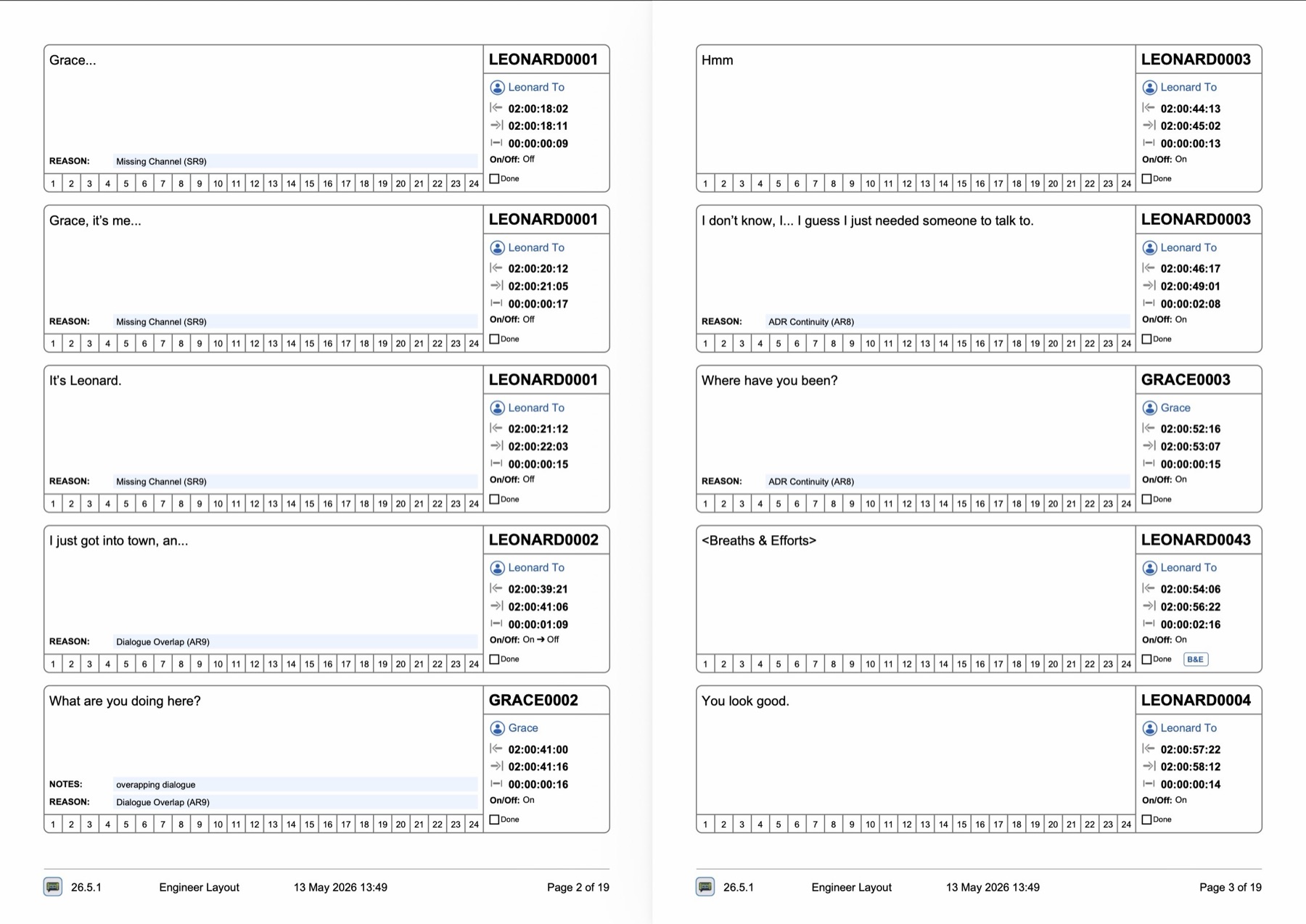
Here is an example of a cue sheet using the Engineer layout, showing scene bars, cue details on the right, Reason, Notes, and Take Number Boxes:
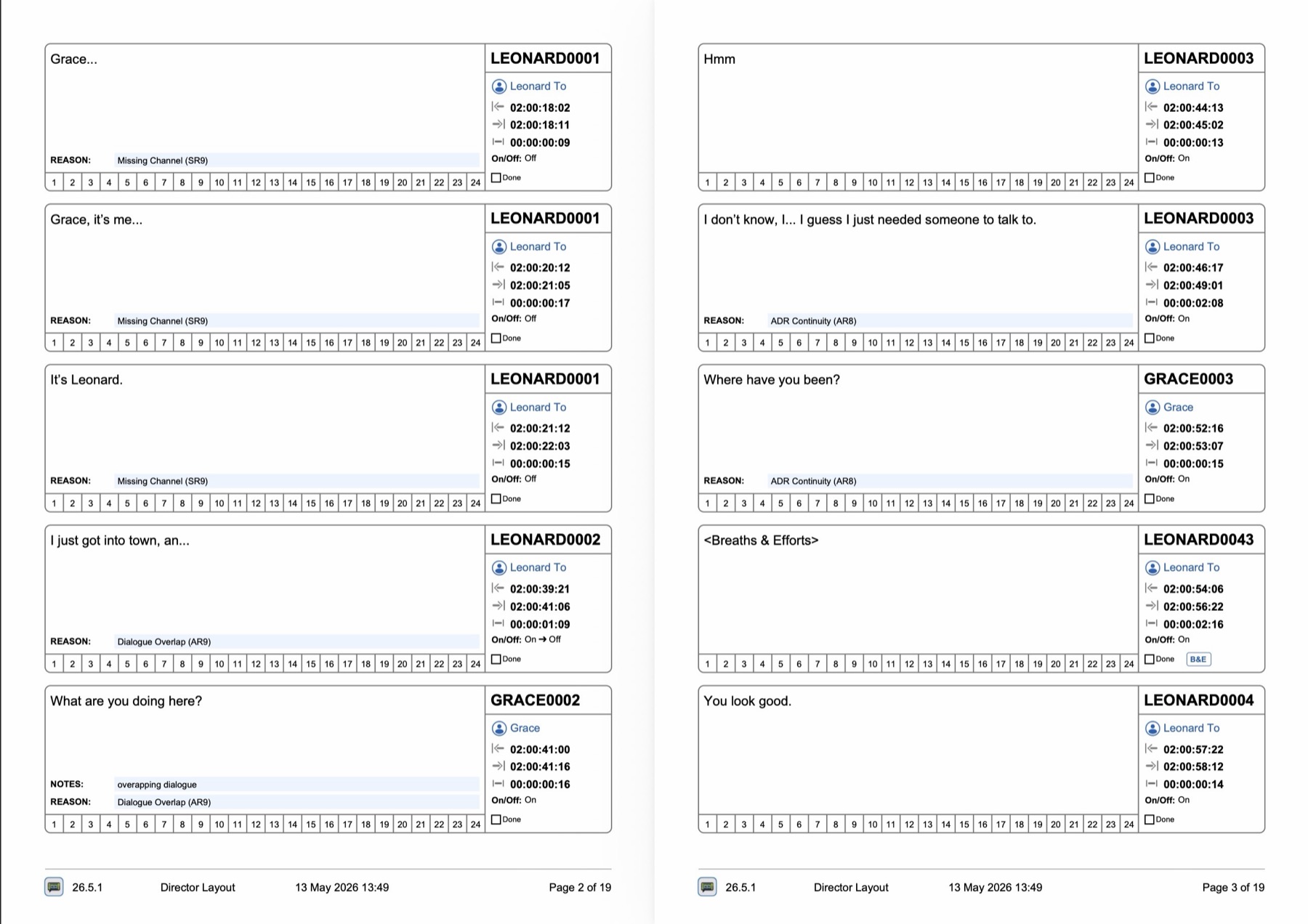
Here is an example of the more simplified Director layout:
Here is an example of the simplified Actor layout:
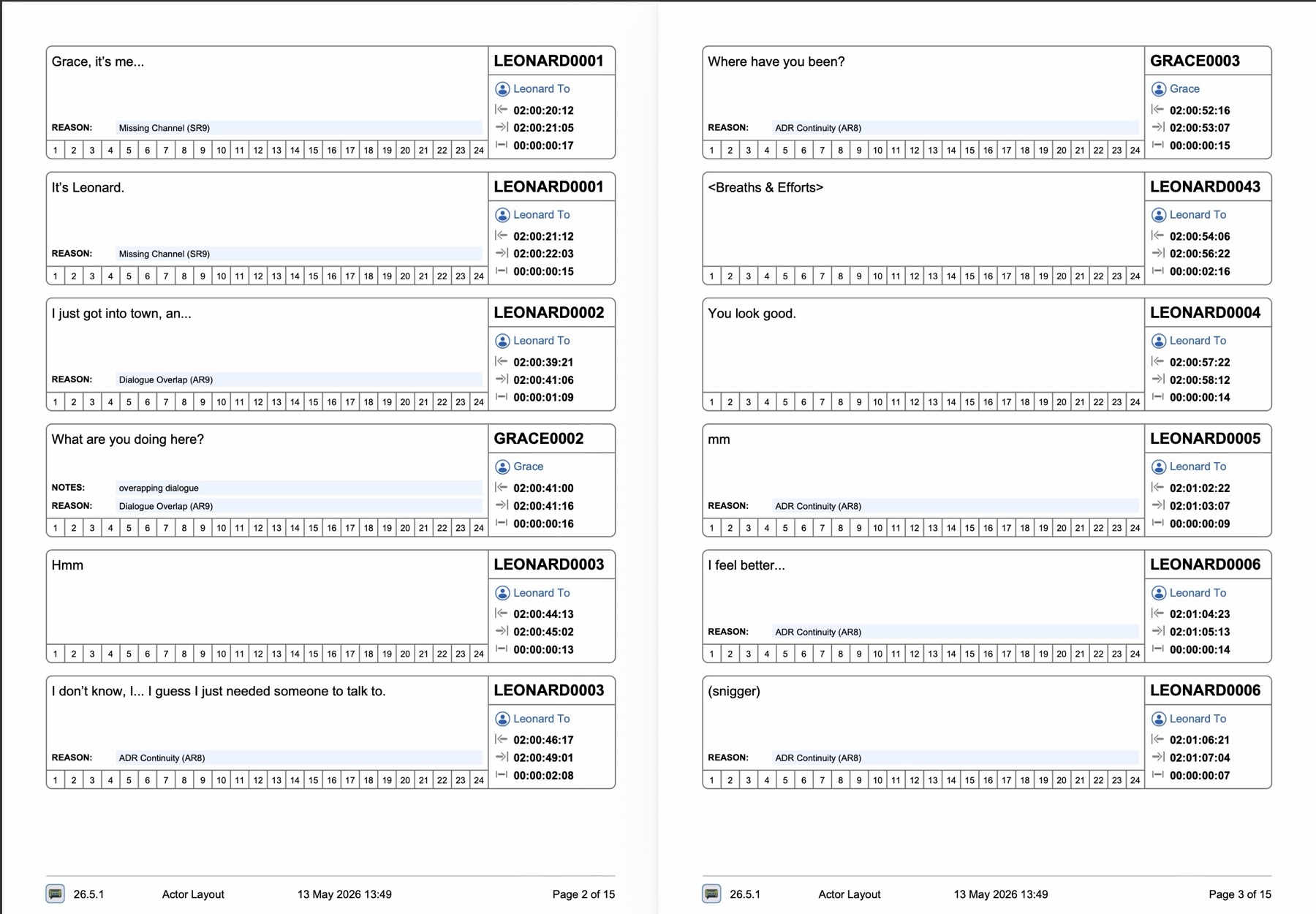
Each cue sheet page includes a footer showing the Cue Pro version number, the layout name, the export date and time, and the page number.
CSV Settings
When CSV is selected from the FORMAT SETTINGS dropdown, the CSV settings are displayed.
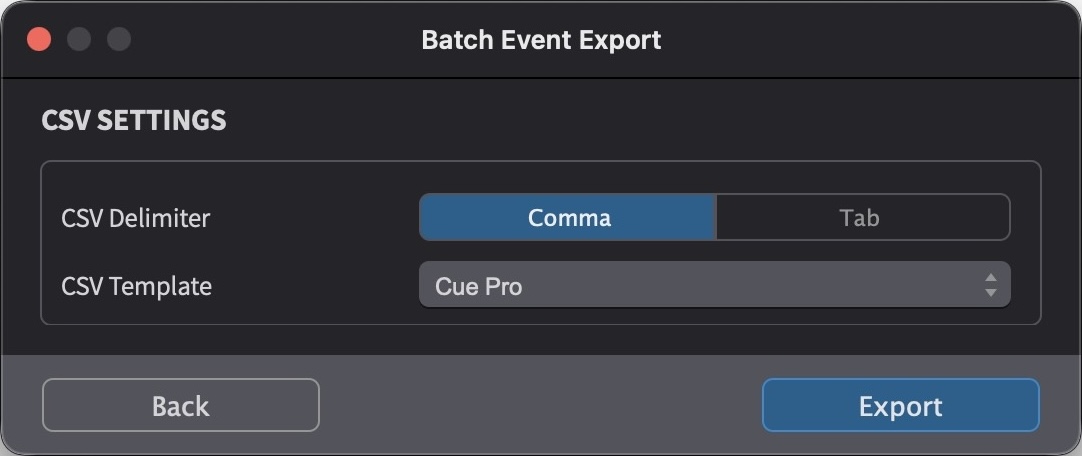
CSV Delimiter (Comma / Tab) - defines whether the column items in each line are separated by commas or tabs.
CSV Template (Cue Pro / DS ADR) - defines whether the columns are labelled in a manner that Cue Pro would be able to auto-map on reimport, or whether they should be formatted for import into the DS ADR recording system.
Exporting the Files
Click the Export button.
In the Set Export Path window that appears next, navigate to where the files should be saved. Enter a name for the file in the Save As: field. All exported files will be given this name as a prefix.
Click the Save button.
The progress bar appears and starts the export process.
Once the progress bar is complete, a folder will appear in the
chosen destination, with subfolders for each exported format.
Word and PDF files are named with the file prefix followed by
the layout name - for example,
20260513v29_Engineer.pdf. Where TBW cues exist, a
TBW subfolder within the
PDF and Word folders contains
the corresponding TBW-only sheets.
Export ADR Overview Sheet
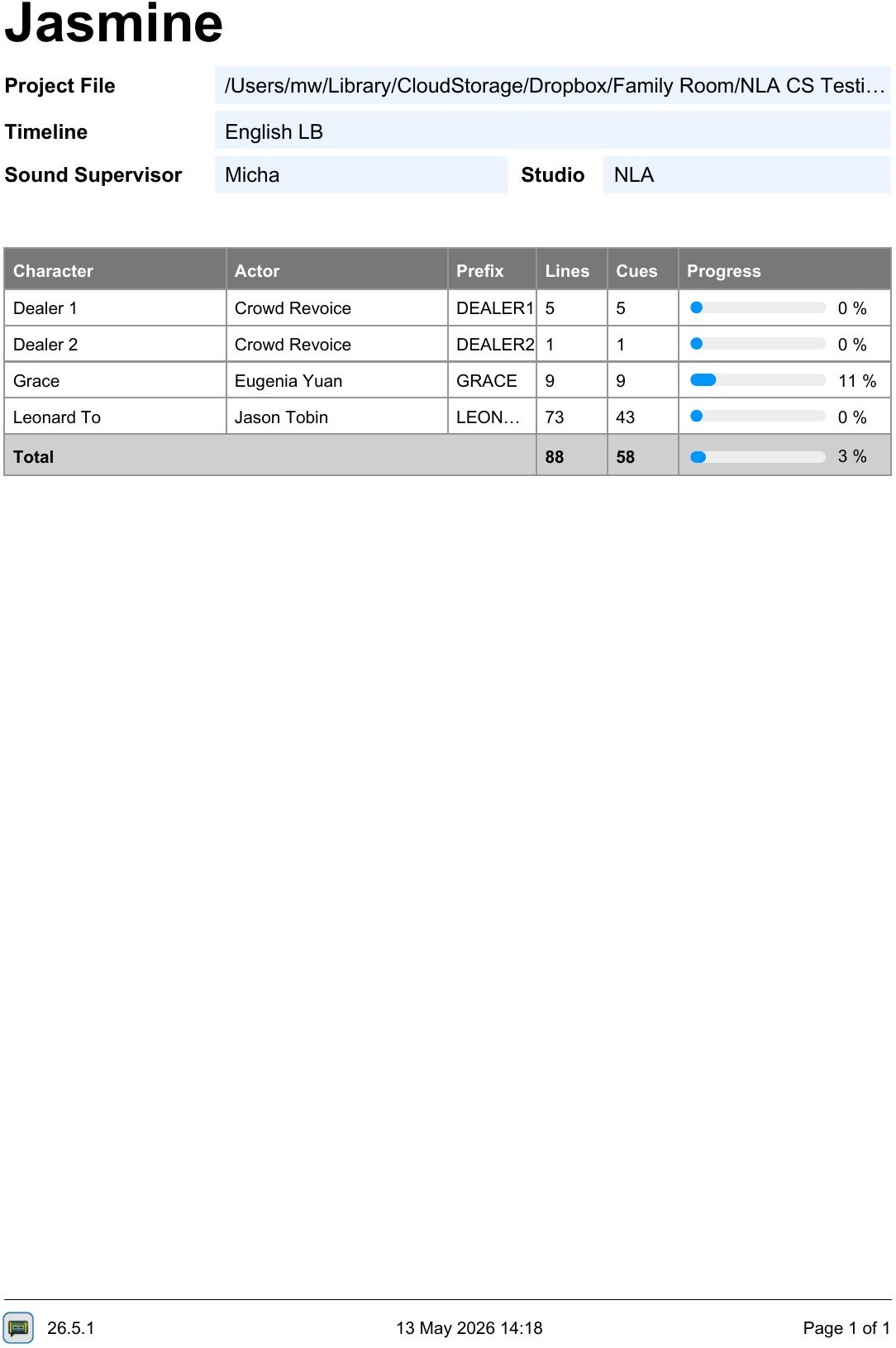
The ADR Overview Sheet is a single-page PDF summary of all the ADR lines for all characters - both recorded and to be recorded. This is particularly useful for Post Production Supervisors needing to schedule and book actors and ADR studios. The overview shows each character with their Actor name, Prefix, number of lines, number of cues and the recording progress.
To export, select File → Export ... → Export ADR Overview Sheet. There are no settings - Cue Pro prompts for a save location and exports the file immediately.
Export Scheduling File
The Scheduling File export creates a basic text file of the lines to be recorded, for use specifically with Arendis and Sesam ADR studio booking systems.
To export, select File → Export ... → Export Scheduling File. This brings up the Scheduling File Export window.
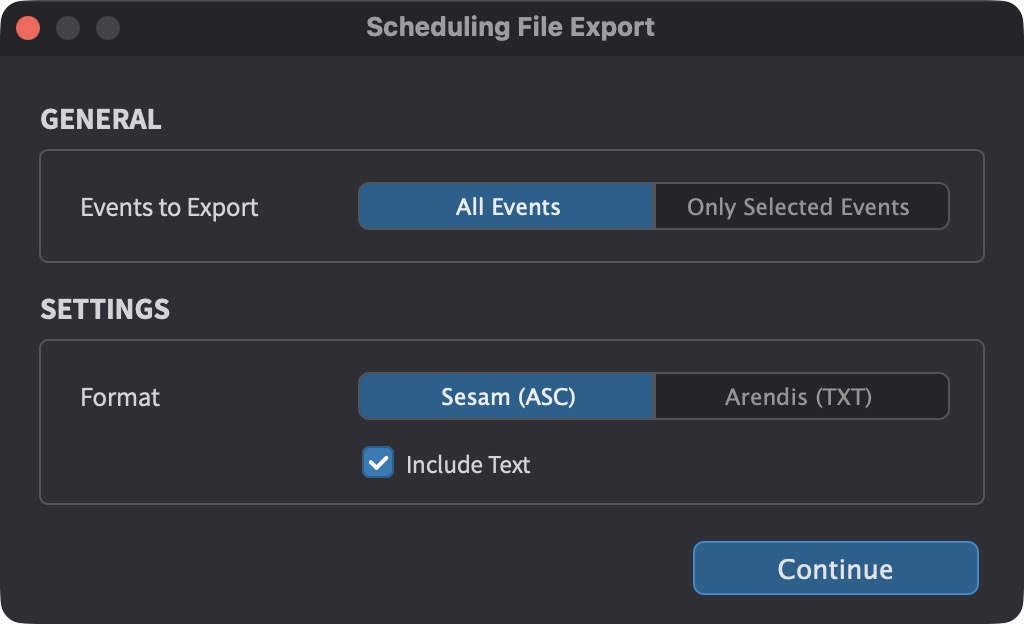
In the GENERAL section, choose whether to export All Events or Only Selected Events.
In the SETTINGS section, set the Format to either Sesam (ASC) or Arendis (TXT) depending on which studio booking system the file is intended for. Enable Include Text to include the dialogue text for each cue in the exported file.
Click Continue, choose a save location and click Save.